Dash Cam Parking Mode Not Working? A Safe Troubleshooting Guide
Trace parking-mode failures through settings, power signaling, cutoff behavior, storage, and a safe step-by-step test.
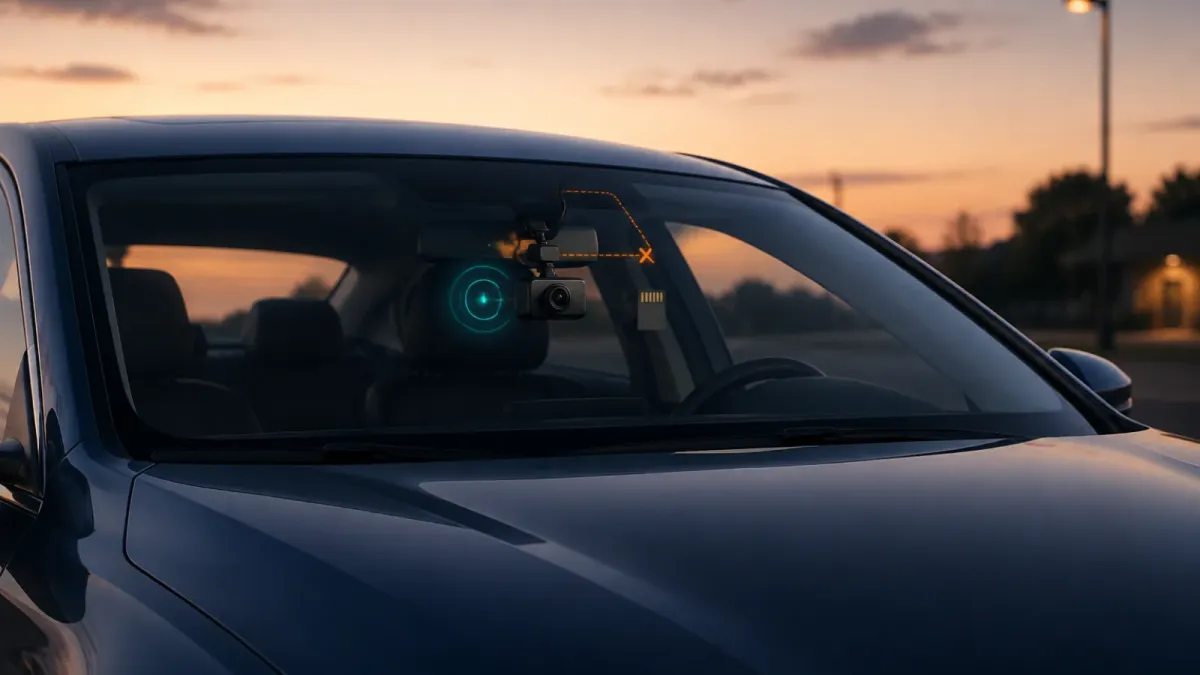
Start by checking the camera's parking setting, supported power accessory, and expected entry signal. Then identify the exact symptom. Immediate shutdown, continuous driving mode, and early parking-mode exit have different causes. Do not change fuse connections until the camera and accessory manuals confirm the correct procedure.
Is parking mode actually failing?
A dark screen does not always mean parking mode failed. Many cameras reduce visible activity while monitoring a parked vehicle.
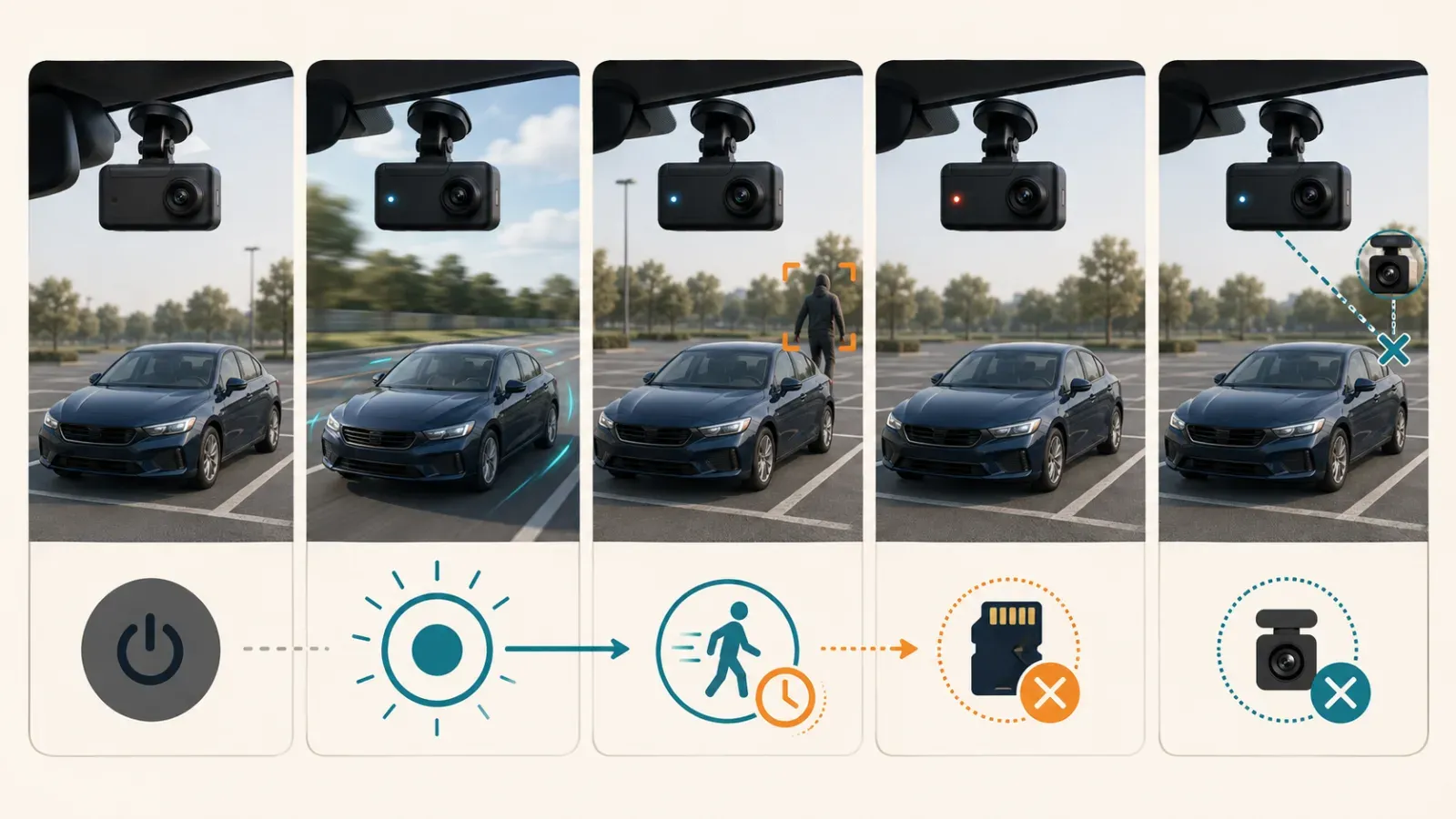
Look for the entry signal described in your manual. It may be a voice notice, status light, parking icon, or changed button behavior.
VIOFO describes a voice notice or parking icon. It appears after the engine turns off. Thinkware uses a voice notice and disables normal button responses.
Some cameras do not change modes immediately. BlackVue documents models that switch after ignition-off or five stationary minutes.
Before changing anything, record what happens:
- The camera powers off with the ignition.
- It stays on in normal driving mode.
- It enters parking mode, then stops early.
- It appears active, but saves no event file.
- It saves front video but misses another channel.
That symptom is more useful than the general phrase "parking mode is broken."
Are the parking settings enabled?
Confirm the mode is enabled before testing wiring. Some cameras ship with parking recording disabled.
Open the camera or app settings while the vehicle is on. Check the exact options listed for your model.
These may include:
- Parking recording enablement
- Motion or impact detection
- Selected parking recording type
- Monitoring duration or timer
- Battery-protection settings
- Front, rear, or cabin channel selection
Thinkware describes a correctly hardwired camera with parking mode disabled. It still cannot switch. BlackVue also requires parking recording and event detection settings to be enabled.
Save the settings, restart the camera, and repeat one controlled parking test. A setting change may not apply until the app disconnects or the camera restarts.
Also check current manufacturer firmware instructions. Garmin includes software updates among its parking-cable checks.
Does the power source support parking mode?
Ordinary driving power does not automatically support parking mode. Many cameras need power plus an ignition-state signal.
A supported arrangement may use a three-wire hardwire kit or compatible OBD-II cable. A dedicated dash cam battery is another option. Compatibility remains specific to the camera and vehicle.
Thinkware says its 12-volt car charger cannot activate its parking modes. This remains true even when the outlet stays powered.
An always-on outlet can keep another camera recording normally. It may not tell the camera that the ignition turned off.
| Power path | What to confirm | Common symptom |
|---|---|---|
| Three-wire hardwire kit | Constant, ACC, ground, compatibility | Off or stuck in normal mode |
| OBD-II cable | Vehicle support and transition behavior | Delayed or missing switch |
| Dedicated battery | Input and output connections | Random mode changes or shutdown |
| 12-volt charger | Explicit parking-mode support | Normal recording or power-off |
Do not assume a connector fits because the plug matches. Confirm the camera, accessory, and firmware combination with the manufacturer.
Why does the camera turn off with the ignition?
The constant feed may be losing power. Parking recording needs a supported source after the ignition turns off.
Thinkware identifies a backward installation or switched constant feed as common causes. The camera loses power instead of entering its parked state.
Check the easy points first:
- Seat the power plug at the camera or mount.
- Inspect any accessible inline connector.
- Confirm the accessory's cutoff switch has a valid position.
- Check whether the camera reports a low-voltage shutdown.
- Compare every connection with the accessory manual.
Do not rely on wire color across brands. Thinkware specifically advises following the cable labels rather than color.
A blown fuse, loose fuse tap, or poor ground can also interrupt power. BlackVue lists those checks in its hardwire troubleshooting sequence.
Why does it stay in normal recording mode?
The ACC connection may still receive constant power. The camera then never sees the ignition-off transition.
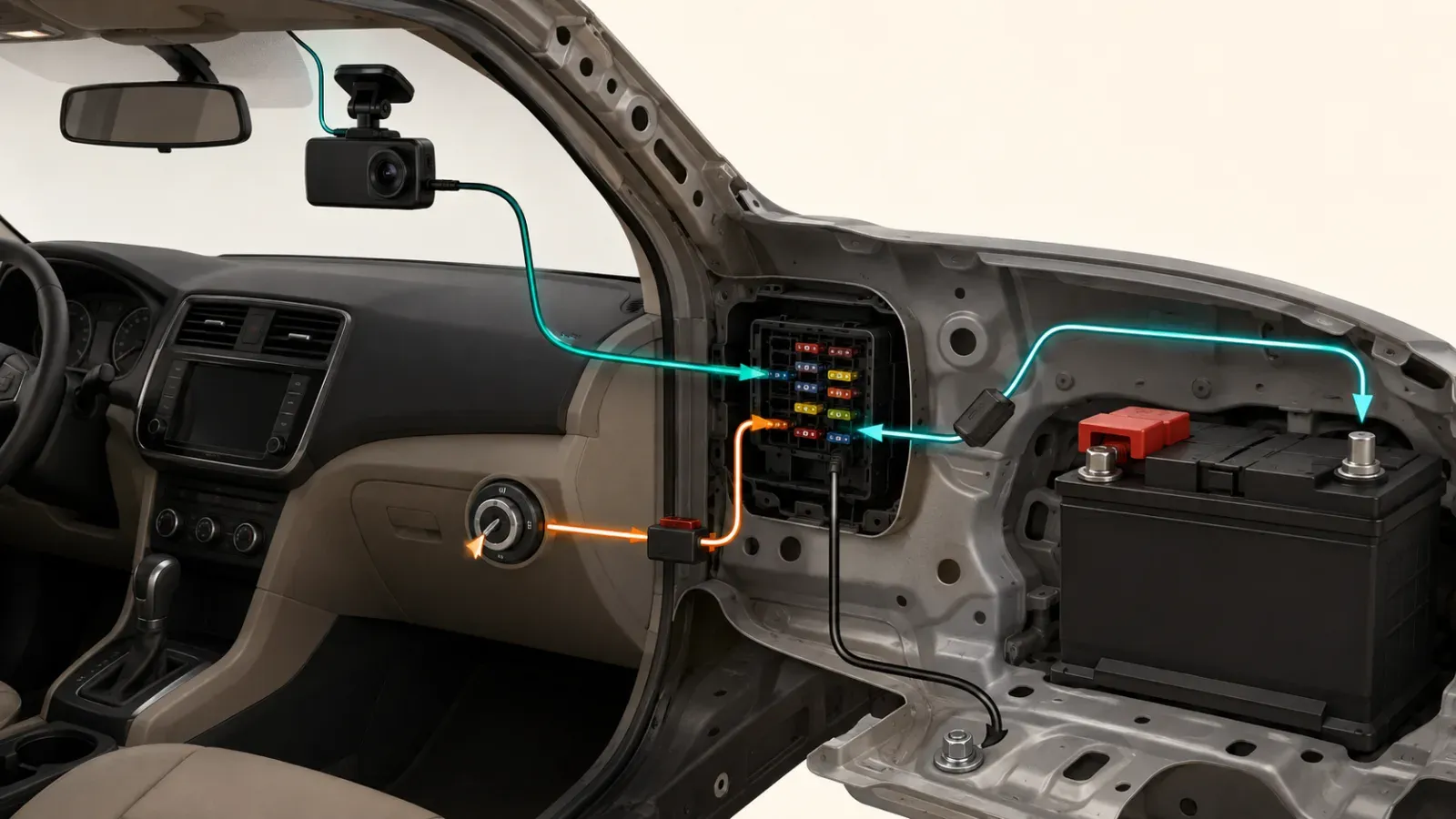
Thinkware says two constant connections can keep a camera in continuous mode. VIOFO describes the same result when ACC is connected to permanent power.
A multimeter or circuit tester can distinguish the circuits. A suitable ACC circuit changes state with the ignition, while constant power remains available.
VIOFO's procedure checks constant power with ignition off. It checks ACC power after startup. Thinkware recommends checking both ignition states.
Electrical safety: stop when fuse identity or vehicle circuitry is uncertain. A qualified installer should handle model-specific electrical work.
Some OBD-II systems have a deliberate transition delay. Thinkware says certain vehicles can take up to ten minutes to switch.
Wait for the documented interval before calling the test unsuccessful.
Why does parking mode stop early?
Battery cutoff and timer settings are the first checks. An early stop can be normal battery-protection behavior.
VIOFO says its cameras stop at the cutoff voltage or parking timer. BlackVue documents the same two protection methods.
A higher voltage threshold generally stops recording earlier. The exact safe setting depends on the accessory, vehicle, battery, temperature, and manufacturer instructions.
Do not lower or bypass protection just to extend recording. Investigate repeated early shutdowns instead.
Use this comparison:
| Observation | Likely area | Next check |
|---|---|---|
| Stops at a repeatable time | Parking timer | Selected duration |
| Stops when battery is near cutoff | Voltage protection | Manual and measured voltage |
| Stops randomly | Connection or card | Plugs, ground, card status |
| Stops only with all channels | Power or processing load | Supported channel configuration |
VIOFO advises measuring voltage and timing the session before deeper troubleshooting. That separates designed protection from an intermittent failure.
Can the memory card cause missing parking clips?
Yes, a faulty or incompatible card can stop recording without stopping camera power. This creates an apparent parking-mode failure.
VIOFO lists card compatibility among its parking-mode checks. It also links incompatible cards with recording stops, beeps, and file problems.
Review the card in this order:
- Copy any important footage before maintenance.
- Check the camera for a card or recording warning.
- Confirm the card appears on the model's compatibility guidance.
- Test playback from a known parking event.
- Format only through the documented camera procedure.
- Replace the card when errors return after correct formatting.
Dash cams create repeated write cycles. VIOFO recommends camera-suitable endurance storage. It warns that incompatible cards can corrupt data.
Formatting can resolve file-system problems, but it erases ordinary files. VIOFO lists gaps, recording failures, and corrupted files among possible maintenance symptoms.
What is the safest troubleshooting order?
Work from settings and observations toward vehicle wiring. This finds simple causes before any electrical intervention.
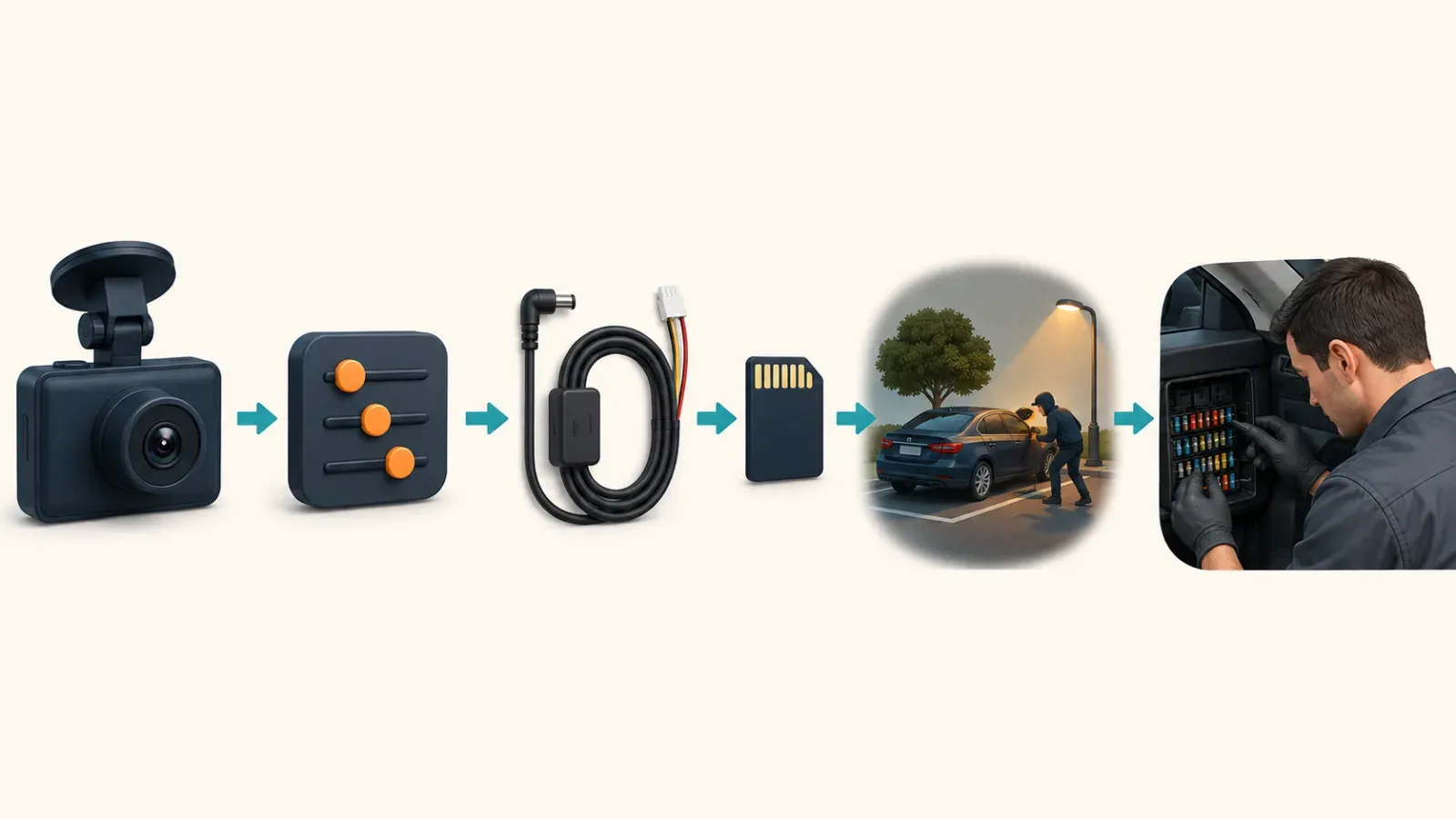
- Read the camera and power-accessory manuals together.
- Confirm how the exact model signals parking entry.
- Enable parking recording, triggers, and the intended channels.
- Verify the installed power accessory supports the feature.
- Observe whether the camera turns off, stays normal, or stops early.
- Check plugs, card warnings, timer, and cutoff settings.
- Test one controlled event, then review the saved file.
- Update firmware only through the manufacturer's documented process.
- Let a qualified installer verify ACC, constant power, and ground.
For an intermittent stop, test the main camera alone with the manufacturer's original driving cable. VIOFO recommends this comparison to separate camera problems from hardwire issues.
Then reconnect one component at a time. Stop when the failure returns.
Document the camera model, firmware, power accessory, card, and observed sequence before contacting support. Those facts make a support request actionable.
Parking mode is working only after the full chain passes. The camera must enter, remain powered, detect the test, save it, and return to driving mode.