Dash Cam Corrupted Video Files: Safe Recovery and Prevention
Separate playback problems from damaged files, protect the original card, and test storage and power without risking wanted footage.
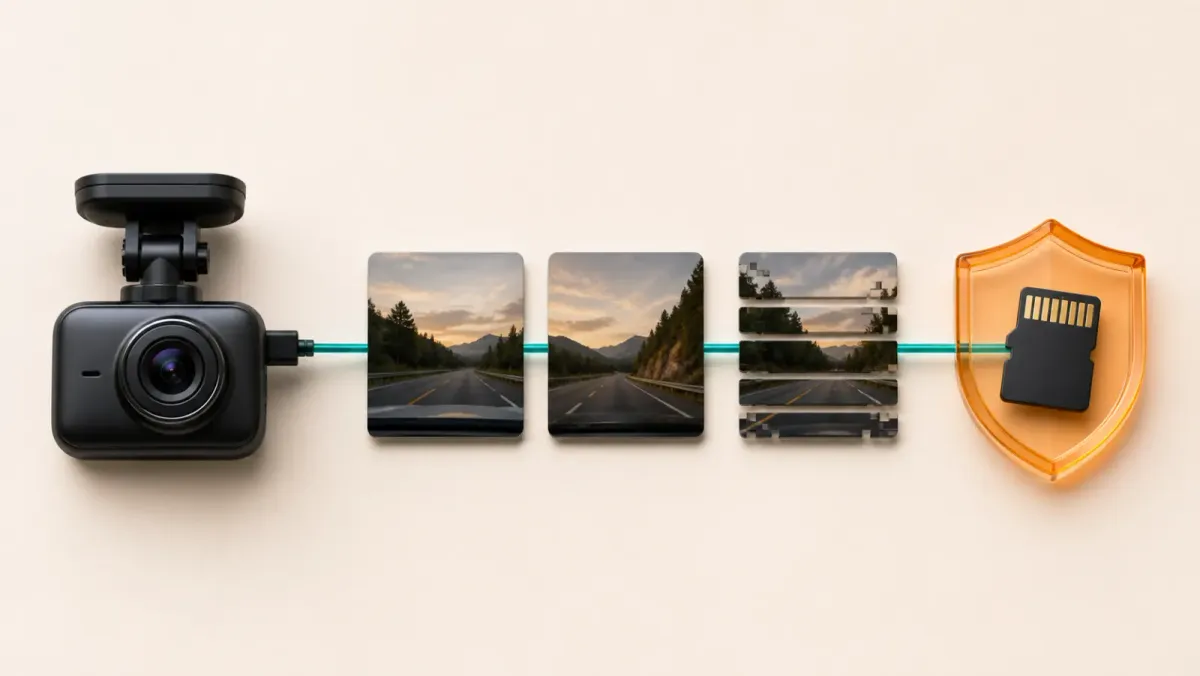
Stop recording before you try to fix a corrupted dash cam video. Preserve readable files, copy the affected card, and diagnose each path separately.
Format or replace the card only after protecting wanted footage. No repair method can guarantee recovery from missing or overwritten data.
What counts as a corrupted dash cam video file?
A corrupted file is incomplete, damaged, or stored incorrectly enough that expected software cannot use it. A playback error alone does not prove corruption.
Common warning signs include:
- One clip refuses to open while nearby clips play.
- Playback ends early or freezes at the same point.
- A clip has video without expected audio, or the reverse.
- The camera reports a memory-card or recording error.
- Expected clips are missing, duplicated, or separated by gaps.
- The camera restarts when the card is installed.
VIOFO lists gaps, recording failures, and corrupted or unplayable files among storage-related symptoms. Thinkware says an unrecognized card may be corrupt.
Start by noting the exact message, filename, file size, folder, channel, and event time. Do not rename the only copy during diagnosis.
Why do dash cam video files become corrupted?
The active file can be damaged when writing stops before the camera finishes it. Storage faults and unstable operation can create similar results.
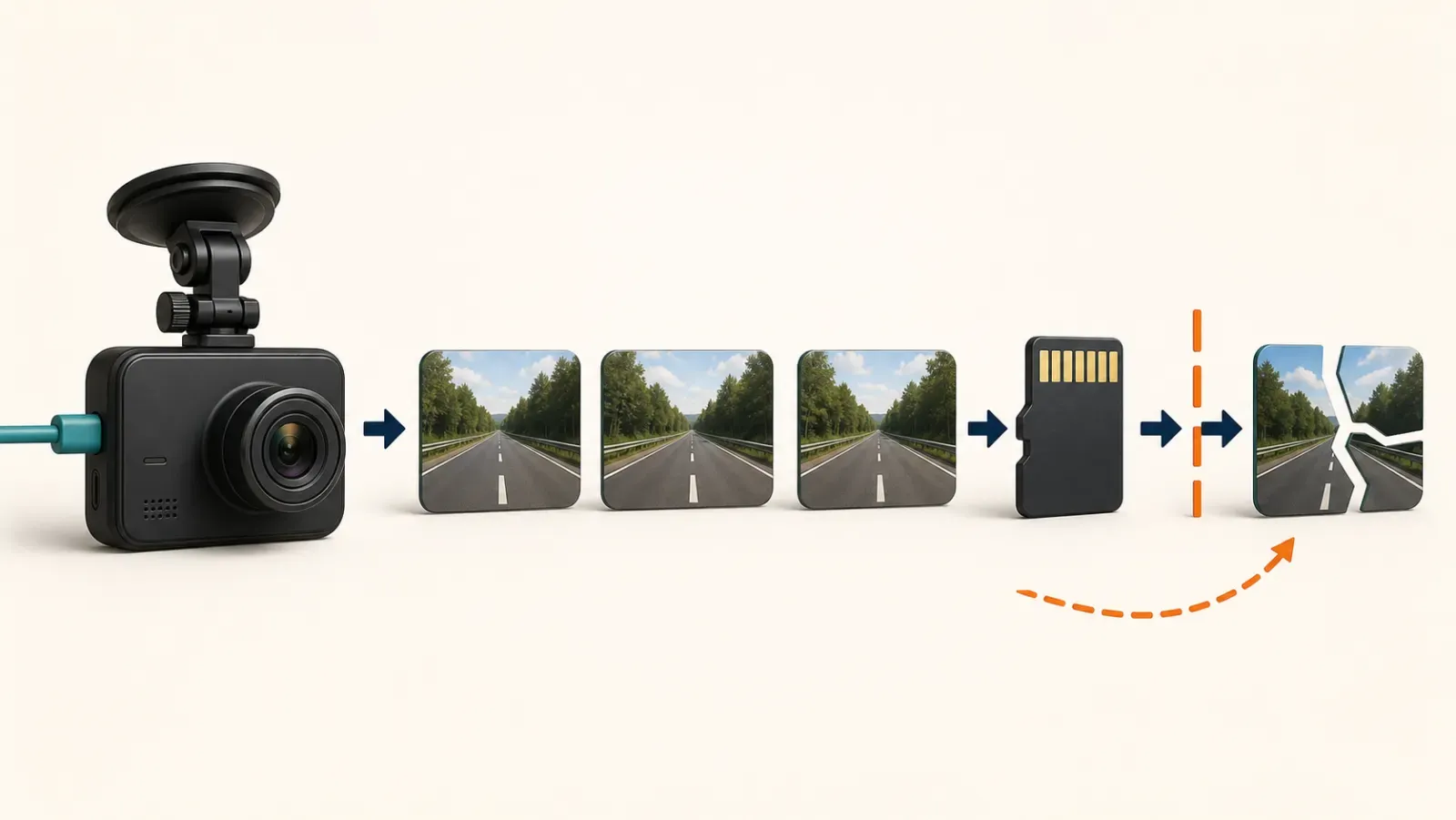
AKASO identifies an unfinished video index header after interruption as one possible cause. It also identifies memory-card errors.
The main cause groups are:
| Cause area | What may happen | Useful clue |
|---|---|---|
| Sudden power loss | Active clip is not closed correctly | Last file fails after shutdown |
| Worn or faulty storage | Writes fail or files disappear | Errors return across sessions |
| Incompatible card | Camera cannot sustain its recording task | Beeps, restarts, or stopped recording |
| Unsafe removal | A write is interrupted | Failure begins after card removal |
| Software or format mismatch | A healthy file will not play in one app | Maker software still opens it |
VIOFO says missing recordings can follow an unstable connection, power source, or defective card. Those symptoms require separate checks.
Some cameras offer recording formats designed to reduce last-file damage. VIOFO documented a TS option for certain A119 firmware after incorrect shutdown affected the last MP4 file.
That option is model-specific. Do not change formats unless the exact camera documentation supports it.
What should you do before trying to repair the file?
Protect the source before attempting any repair. Continuing to record, formatting, or testing writes may reduce recovery options.
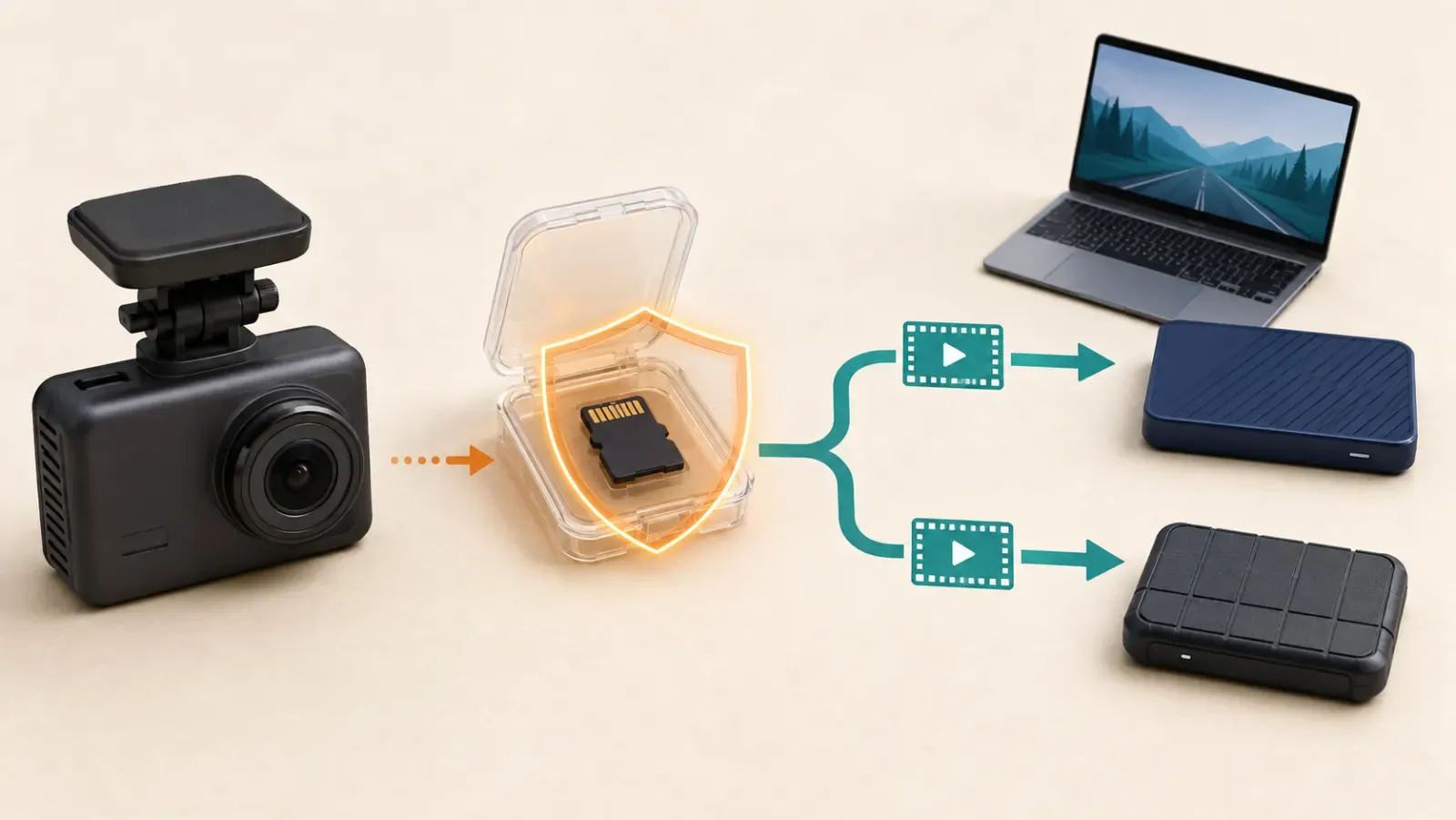
Use this order:
- Stop the camera through its documented shutdown method.
- Remove the card only after recording and power have stopped.
- Copy every readable folder to a computer through a card reader.
- Make a second copy in separate storage.
- Set the original card aside and test only a working copy.
Sandisk recommends using a card reader for computer transfers. It defines a backup as keeping a file in at least two places.
Do not format the source card. Do not run write tests, defragmentation, or broad repair commands against it.
If the footage concerns a crash, crime, insurance dispute, or serious injury, treat preservation as the priority. A qualified recovery or digital-evidence professional may be more appropriate than self-help software.
Is the file corrupted or just unsupported by the player?
Test the playback path before calling the file damaged. A codec, container, transfer, or application mismatch can resemble corruption.
Compare the affected file with recordings from the same camera, channel, and session. Then follow this sequence on copies:
- Open a nearby known-good clip in the same player.
- Try the affected copy in the camera maker's supported application.
- Copy the file again using a card reader.
- Try a trusted local player that supports the recorded format.
- Check whether the camera itself can play or export the clip.
VIOFO provides a current desktop player for video, GPS, and G-sensor playback. Other manufacturers use different applications and formats.
| Result | What it suggests |
|---|---|
| Only one player fails | Playback compatibility may be the issue |
| Only one copied file fails | The transfer may be incomplete |
| One original clip fails | The damage may be limited to that clip |
| Many clips fail | Investigate the reader, card, power, and camera |
| Card is not recognized | Stop ordinary testing and assess recovery value |
Do not upload private cabin or location footage to an unknown repair website. Review its privacy, retention, security, and deletion terms first.
How can you safely try to recover a corrupted dash cam video?
Recovery attempts belong on a working copy, never the only source. Begin with supported playback and export tools before considering repair software.
Try the least destructive paths first:
- Use the camera maker's current app or desktop player.
- Export or save a new copy when the maker's software can open it.
- Test a trusted local media player without modifying the original.
- Contact the camera maker with the model, firmware, and exact error.
- Consider reputable recovery help when the recording matters.
Do not assume renaming an extension repairs the file. Do not transcode over the only working copy.
Sandisk says software recovery may be possible when a card still works. It directs nonworking cards toward a professional recovery company.
No software can recreate video frames that were never written. A technician may still recover fragments, but the result depends on the card and file state.
When should you format or replace the memory card?
Format only after wanted footage is copied and verified. Formatting is maintenance or fault isolation, not a recovery step.
Use the exact camera's documented procedure. File-system choices and schedules vary between models.
VIOFO recommends at least monthly formatting in its guidance. It advises more frequent attention for heavier use.
Replace the card when:
- The camera or computer cannot recognize it.
- The correct format process cannot complete.
- Errors return after a supported format.
- A verification test reports write failures.
- The camera maker identifies the card as incompatible.
Thinkware says a card that cannot be recognized or formatted should be replaced. VIOFO documents a write-and-verify test for diagnosing a card.
Testing writes across the card erases or overwrites data. Run that test only after preservation and when recovery is no longer required.
How do you test the fix and prevent repeat corruption?
A warning disappearing is not enough. Verify that fresh files survive recording, shutdown, transfer, and playback.
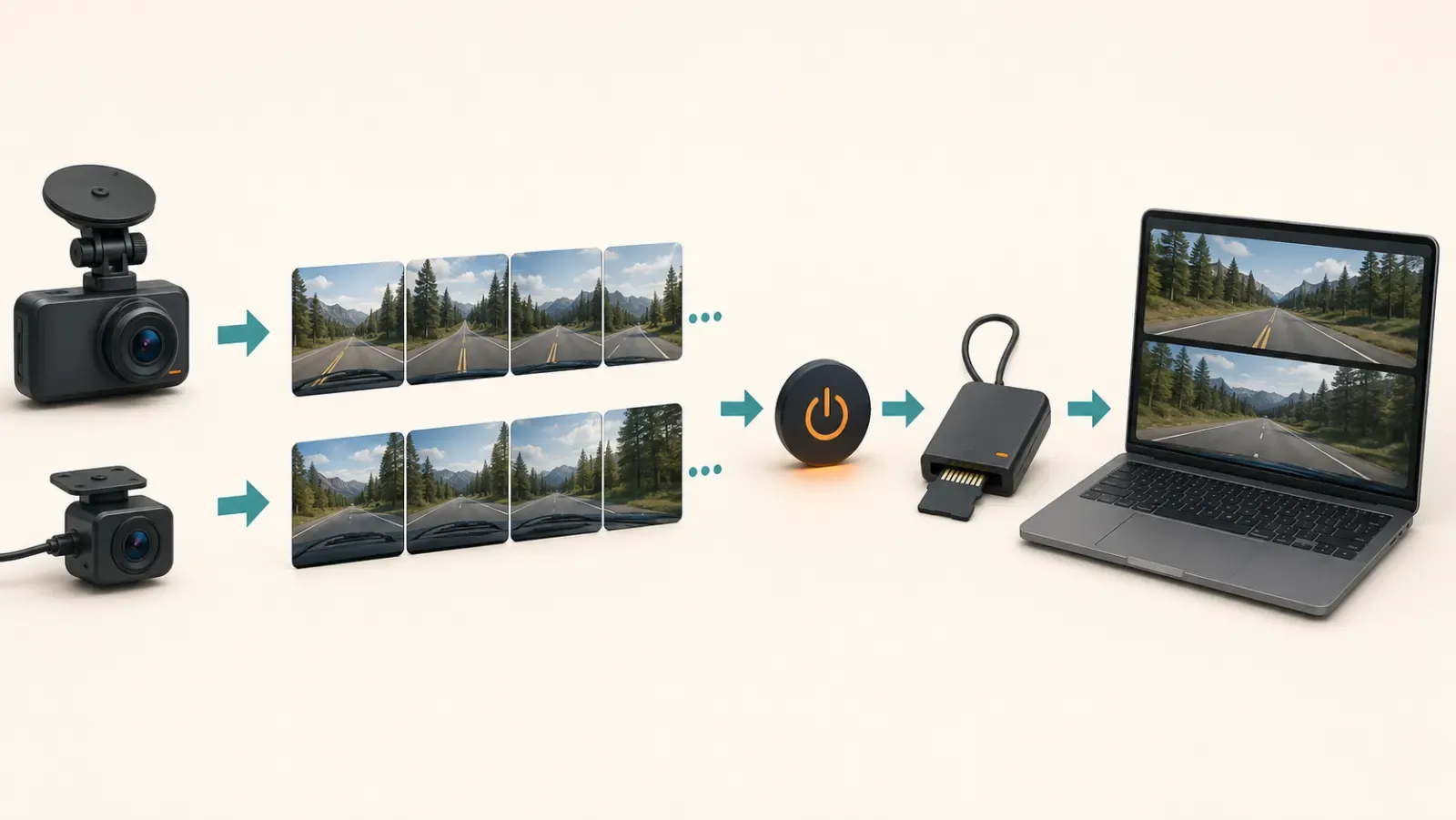
Complete a controlled check while safely parked:
- Install a compatible, correctly prepared card.
- Use the manufacturer's supported power cable.
- Record several ordinary clips.
- Shut the camera down normally.
- Copy the files through a card reader.
- Replay every enabled camera channel.
- Check timestamps, sequence, audio choice, and expected folders.
VIOFO recommends checking the original power cable, connections, and card when recording stops. Change one relevant variable at a time.
Preventive habits are simple:
- Use a card approved for the exact camera and channel setup.
- Keep the camera on current manufacturer firmware.
- Follow the model's format schedule.
- Shut down before removing storage.
- Inspect recent recordings instead of trusting only the status light.
- Replace a card that repeats verified errors.
If corruption continues with supported power, current firmware, and compatible storage, contact the camera maker. Provide sample copies, not your only source media.