What Is Loop Recording on a Dash Cam? Settings and Saved Clips
Understand clip length, rolling storage, protected events, and the backup routine that keeps important dash cam footage from disappearing.
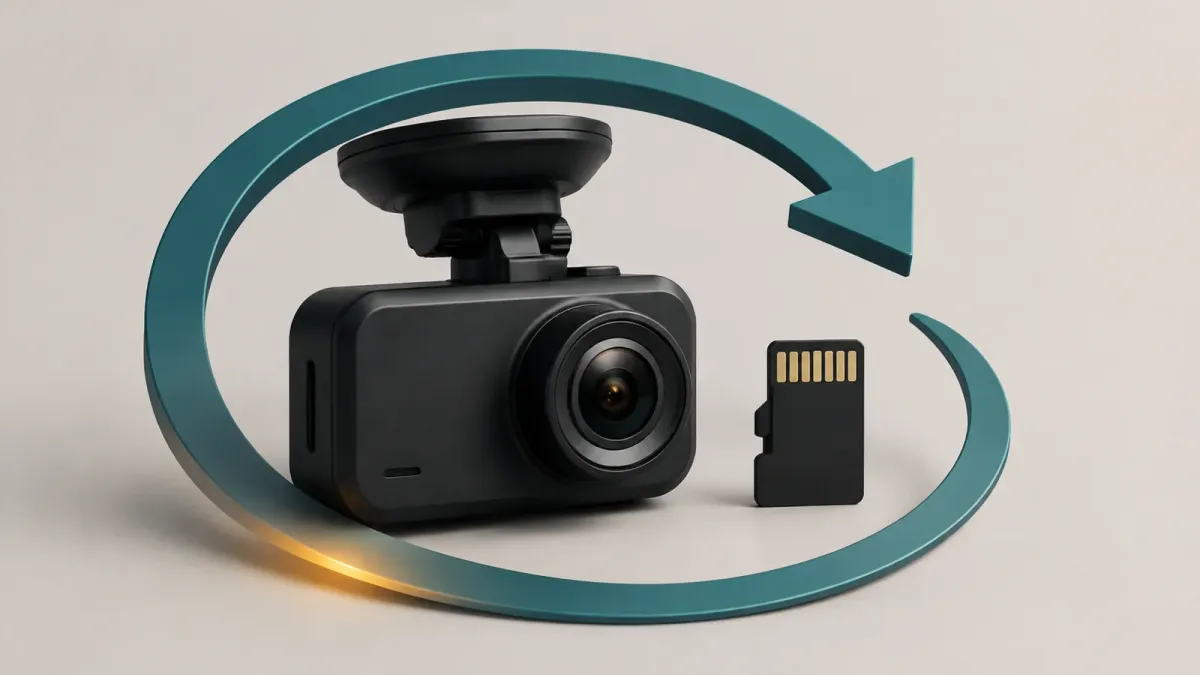
Loop recording lets a dash cam keep recording by replacing its oldest eligible footage when storage fills. It usually saves the drive as separate video clips. The clip-length setting controls each file, not your total recording history.
Save important footage elsewhere before the camera records over it.
What happens when the memory card is full?
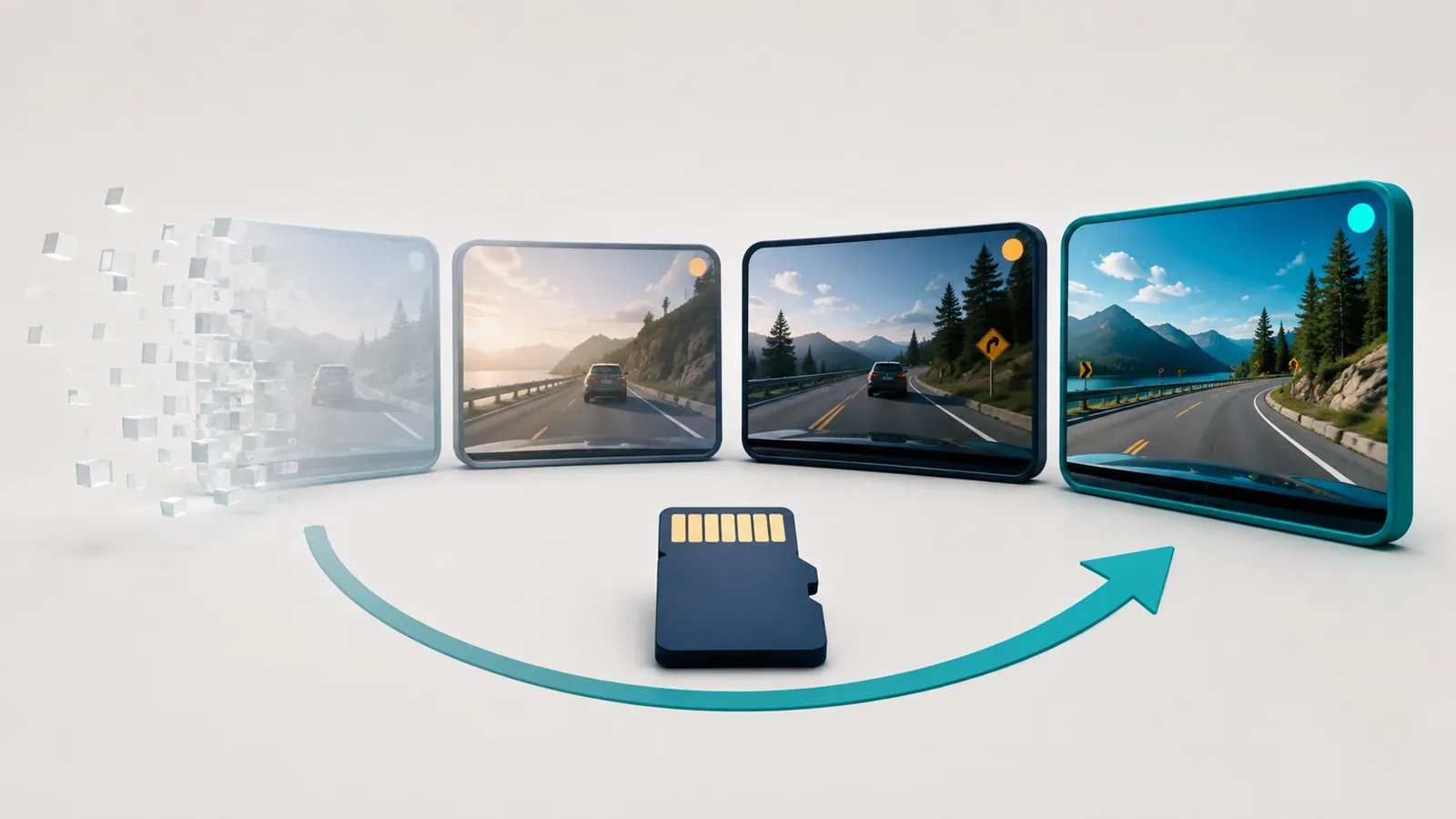
With loop recording enabled, the camera replaces older eligible files to make room for new footage. This gives you a rolling record of recent driving instead of a permanent archive of every trip.
The process works like a queue:
- The camera records a video segment and saves it.
- It starts another segment while recording continues.
- When usable recording space fills, it replaces the oldest eligible segment.
- The cycle continues while the camera has power and can record successfully.
Eligible matters here. Protected events, separate recording folders, and storage allocations can change which files the camera replaces.
A full card can therefore be normal during working loop recording. A full-card warning followed by stopped recording needs attention.
I would keep loop recording enabled for routine driving. On cameras that offer an off setting, disabling it can stop recording when storage fills.
Loop recording cannot fix a damaged card, restore missing power, or guarantee that every incident gets captured. Check actual saved files occasionally instead of treating a powered screen as proof of recording.
What do one, three, and five minute settings mean?
These settings normally describe the duration of each saved video file. A three-minute setting does not mean your camera keeps only the last three minutes of your drive.
Available durations vary by model. Some cameras offer one, three, or five minute options; others use different choices or fixed segments.
| Setting or term | What it controls | What it does not establish |
|---|---|---|
| Loop clip length | Duration of an individual file | Total hours stored |
| Card capacity | Available storage space | Guaranteed retention time |
| Video quality settings | How the camera records its images | Whether footage has been backed up |
| Event protection | Special handling of selected clips | Permanent preservation everywhere |
Shorter files can make locating and transferring a particular moment easier. Longer files keep more surrounding footage together, with fewer separate files to handle.
There is no single best duration for every driver. I would start with the manufacturer's default, then check whether downloading and reviewing clips feels manageable.
Changing file duration does not automatically improve image quality. Resolution and other recording settings are separate choices.
An incident may cross a file boundary. When saving it, inspect the neighboring clips rather than exporting only the file containing the most obvious moment.
Can loop recording overwrite locked or event videos?
It can, depending on the camera's event-storage rules. A protected clip may avoid the normal overwrite cycle without being preserved indefinitely.
Many cameras use a G-sensor to flag sudden movement or impact. A manual save control can also protect footage that did not trigger the sensor.
However, different manufacturers implement protection differently. BlackVue's documented Protect Event File behavior retains up to 50 event and manual files before newer events replace them.
That example should not become a rule for other cameras. Check your model's manual for its event limit, overwrite option, and behavior when protected storage fills.
Before depending on the lock function, find these answers:
- Which control saves a clip manually?
- Does it protect the current file, adjacent footage, or a separate event recording?
- Can newer events overwrite older protected files?
- Where can you find protected files in the app or on the card?
A high G-sensor setting may flag ordinary bumps unnecessarily. If that happens, review the sensitivity guidance for your model instead of assuming every protected clip contains a collision.
A locked clip is a reason to make a backup, not a reason to postpone one.
How long does footage last before it is overwritten?
There is no universal retention time for a given card size. Capacity, recording settings, camera count, and space reserved for other files all affect the available history.
The same card can retain different amounts of video in different cameras. Adding a rear camera or changing recording quality can alter the result.
| Factor | Why it matters |
|---|---|
| Compatible card capacity | More usable space can retain more footage |
| Recording bitrate | More data per second consumes storage faster |
| Number of recording cameras | Additional video streams use storage too |
| Protected files or separate allocations | Normal recordings may have less space available |
Start with the manufacturer's recording-time table for your exact camera configuration. Check whether its estimate includes a rear camera and matches your selected quality settings.
You can also inspect the oldest and newest normal recordings after the card has completed an overwrite cycle. Treat that as an observation of your setup, not a guaranteed future retention window.
Avoid running this check while valuable footage remains unbacked-up. The overwrite cycle deliberately removes older files.
A larger compatible memory card can help when you need more recent history. It still cannot serve as a permanent archive of a journey you want to keep.
Lowering recording quality may extend retention, but it changes the footage you capture. I would choose storage around the recording quality needed, then save important journeys separately.
How do you save footage before the loop replaces it?
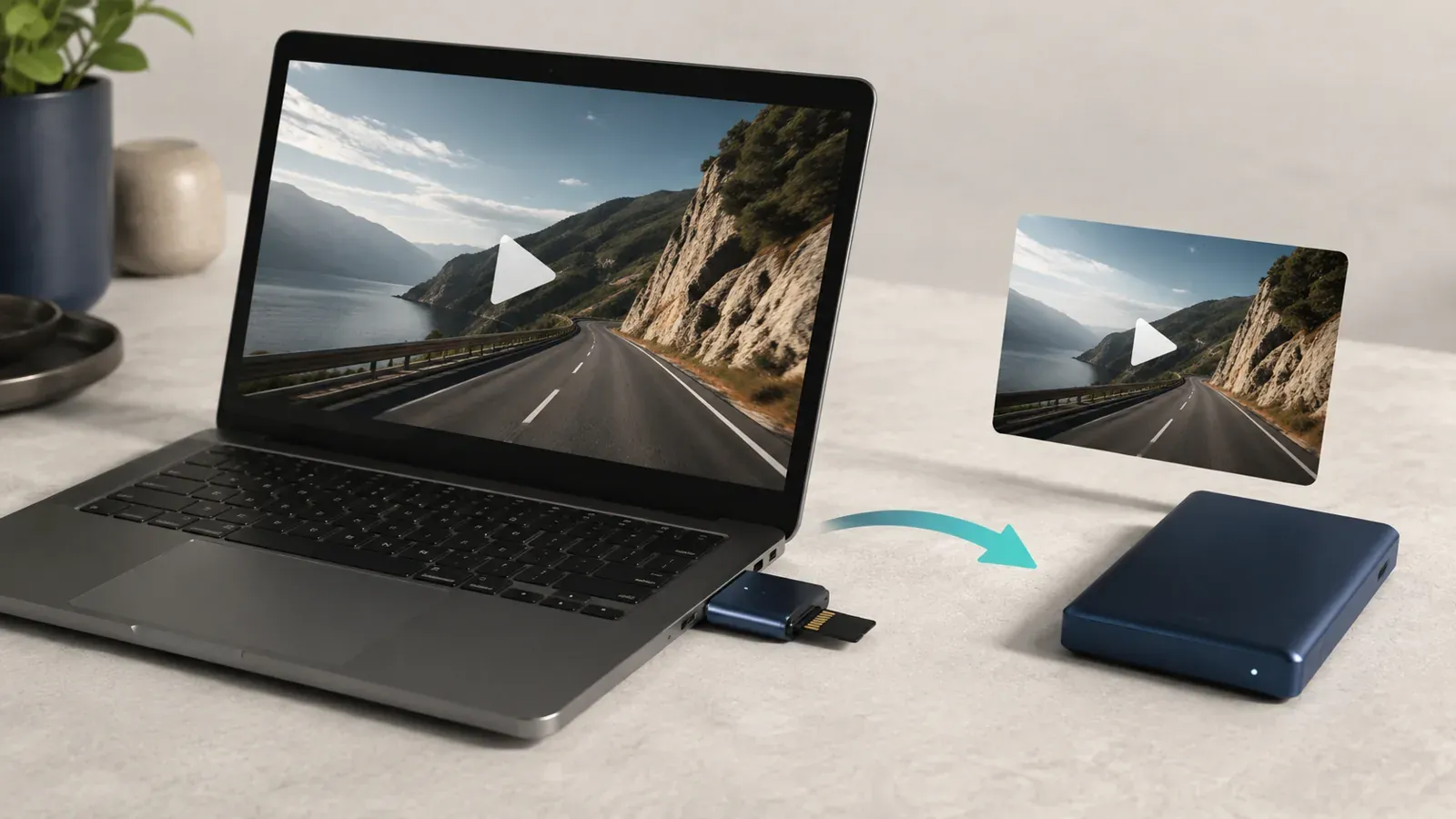
Use the camera's save or lock function, then copy the important recording to another device promptly. Verify the copy plays before deleting or formatting anything on the original card.
The exact buttons and export method depend on the model. Follow its app or card-reader instructions, and handle the camera only when safely parked.
A practical retrieval sequence is:
- Note the approximate incident time so you can find the right files.
- Use the supported save control when safe, if the relevant footage remains available.
- Locate both normal recordings and the event folder.
- Review footage before and after the incident, including adjacent segments.
- Export the relevant files from every camera view you need.
- Play the exported copies and check their beginning, ending, and sound where applicable.
- Keep the original files, with a separate working copy if you want to trim or annotate them.
A saved item inside the camera's app is not necessarily an independent copy. Confirm whether it lives on your phone or still requires access to the camera's card.
If using a card reader, follow the camera's shutdown and card-removal instructions first. Do not remove a card while the camera is writing to it.
Avoid formatting as your first response to missing footage. Formatting clears recordings, so preserve anything needed before maintenance.
Why has loop recording stopped working?
Check the recording setting and memory card before assuming loop recording itself has failed. VIOFO distinguishes a full-card condition with looping disabled from errors caused by faulty or incompatible cards.
| What you notice | What to check first |
|---|---|
| Full-card warning and recording stops | Whether loop recording was turned off |
| Memory error or unreadable recordings | Card compatibility and the maker's troubleshooting procedure |
| Large numbers of protected clips | Event-storage rules and G-sensor sensitivity |
| Recording pauses when nothing moves | Whether a motion-triggered recording setting is active |
| No new files after parking | Power supply and the selected parking mode |
First, preserve any important files that remain readable. Then use the manufacturer's formatting procedure and maintenance schedule for that camera.
Loop recording does not eliminate card maintenance. VIOFO still recommends periodic formatting because dash cams repeatedly write and overwrite storage.
If errors return, check the card against the manufacturer's recommended specifications. A supported replacement may be necessary when a faulty or incompatible card remains the cause.
Also distinguish continuous driving recording from motion detection. On applicable VIOFO models, enabling driving motion detection can pause recording when no movement is detected.
After changing settings or replacing a card, record a short ordinary journey. Verify new files play and that recording continues across segment boundaries.
For persistent failures, record the exact warning, model, firmware version, and card details before contacting support. Those details make the troubleshooting process more useful than repeatedly formatting without identifying the cause.
Does loop recording work with the engine off?
Loop recording manages stored files; it does not supply power or activate parking surveillance by itself. Recording while parked depends on the camera's supported parking setup, settings, and available power.
Parking modes can also record differently from normal driving. VIOFO documents event-triggered recording, time-lapse recording, and continuous low-bitrate parking recording on applicable cameras.
A gap between parked events may reflect the selected mode. It does not automatically mean that the card failed or loop recording stopped unexpectedly.
Check the parking mode and power arrangement together. VIOFO notes that a battery-voltage cutoff or parking timer can intentionally end parked recording.
A larger card cannot overcome that power limit. Likewise, power remaining available does not prove the camera entered the parking mode you intended.
For everyday use, leave looping enabled, check saved footage, and export anything important promptly. That combination makes the feature useful without depending on an uncertain retention window.