How Does a Wi-Fi Dash Cam Work: 2.4 vs 5GHz Setup Method
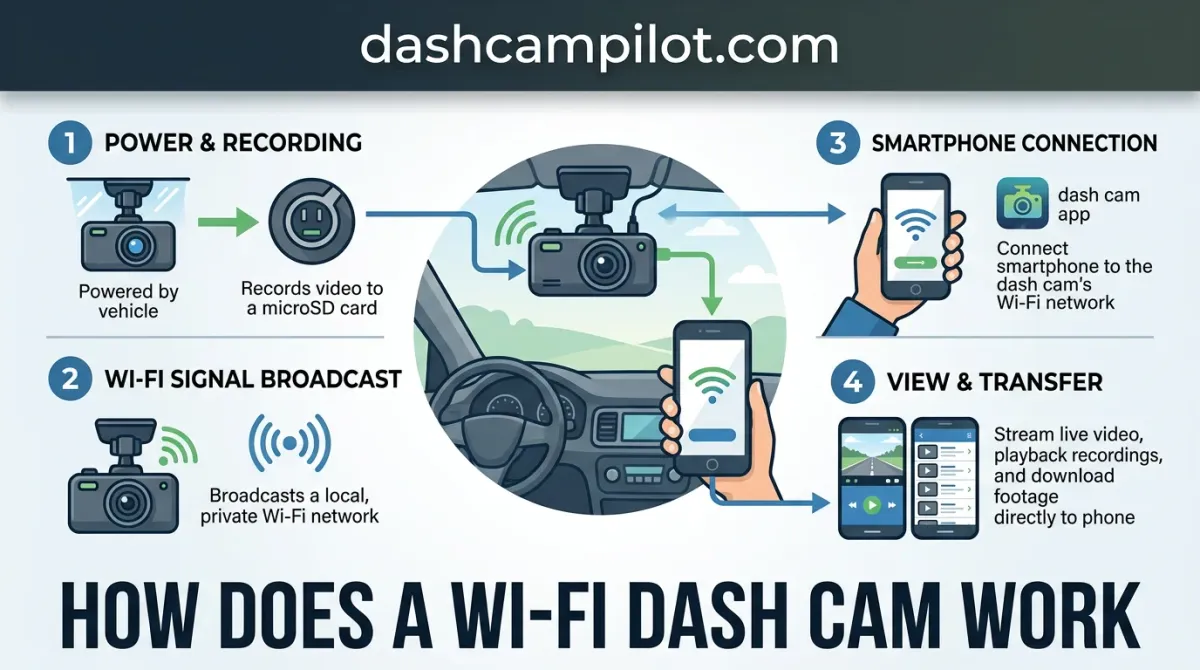
Getting footage off an older dash cam usually meant pulling out a fragile memory card on the side of the road. A Wi-Fi dash cam eliminates that hassle by creating an independent wireless network right inside your vehicle. It broadcasts a direct radio frequency to your smartphone, letting you view live video, change device settings, and save accident files straight to your photo gallery without needing cellular data or a home router.
Below, we break down the internal hardware powering this ad-hoc link, how it coordinates with local storage, and the band speeds and connection quirks you will encounter while driving.
How Does a Wi-Fi Dash Cam Work Without Internet?
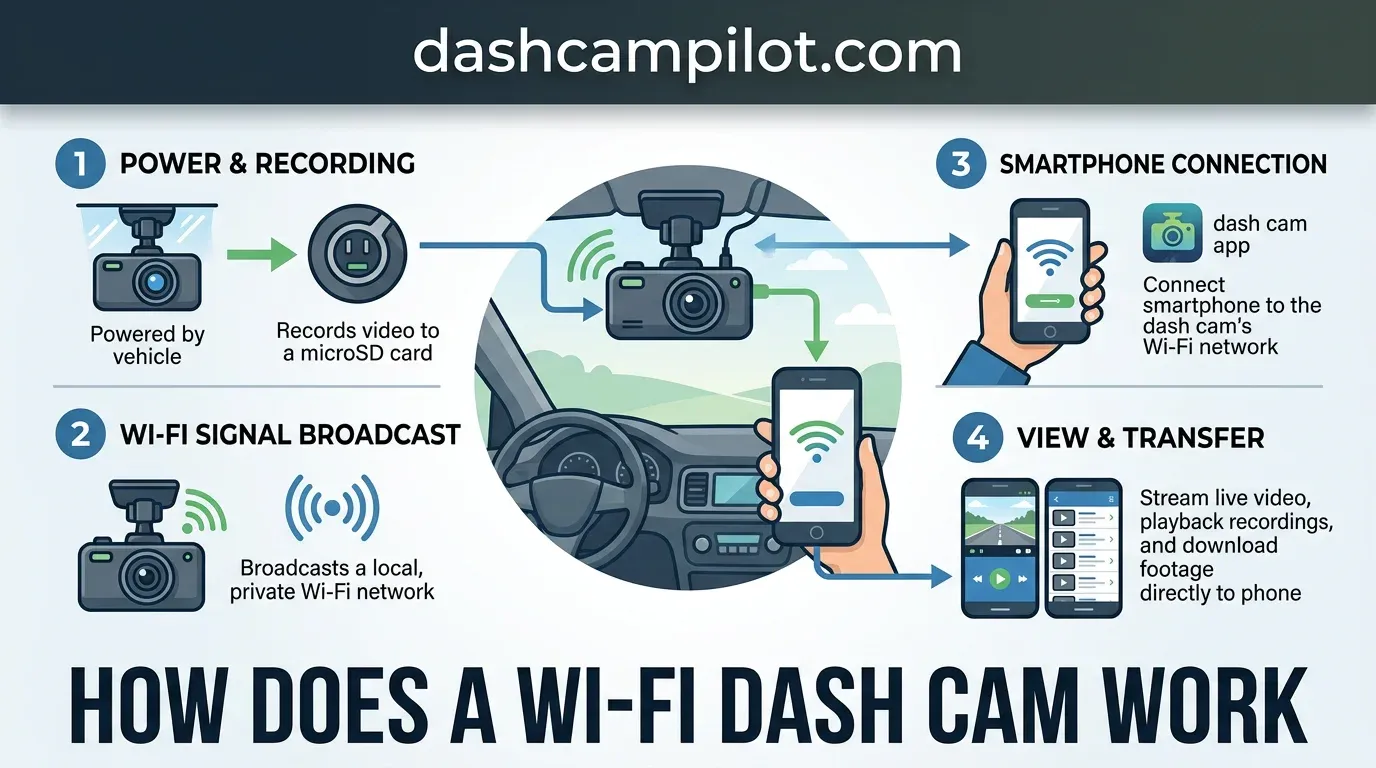
A common misconception is that a Wi-Fi dash cam supplies an active internet connection or requires web service to run. In reality, a standard Wi-Fi dash cam creates its own private, local Wi-Fi network; it does not provide internet access or act as an internet hotspot.

Understanding Access Point (AP) Mode
A Wi-Fi dash cam functions as an independent local Access Point (AP) rather than an internet router. Once powered, the unit broadcasts its own radio frequency, establishing a direct, ad-hoc local area network (LAN) exclusively between the camera and a smartphone.
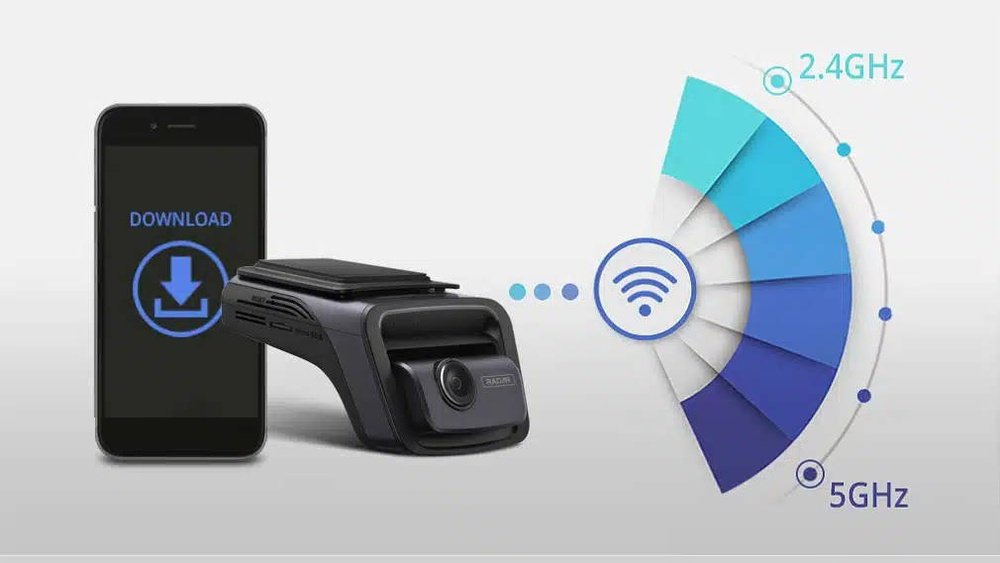
No cellular data plan, satellite feed, or third-party router is required for the camera to communicate with the phone. The camera's Wi-Fi network is strictly a short-range bridge between the camera and a smartphone companion app.
This process works the same way as connecting a smartphone to a home drone or wireless printer without an active web connection. The devices establish a closed handshake, transferring commands and files locally over radio waves without routing any information through the broader internet.
Local Wireless Range vs. Remote Internet Hotspots
Because the dash cam uses localized radio transmission rather than wide-area cellular infrastructure, its wireless communication range is strictly short-distance, typically spanning 3 to 10 meters. This perimeter easily covers the vehicle cabin and the immediate area around the vehicle.
Because the connection depends entirely on this localized link, connections drop once the user walks away from the vehicle. Without internet routing capabilities, the dash cam cannot push video alerts across town, operating strictly as a close-proximity tool for on-scene file management.
Inside the Camera: The Hardware Process That Powers Wi-Fi
The Role of the System on Chip (SoC) and Image Sensor
The hardware pipeline begins at the image sensor, which captures incoming optical photons through the camera lens and converts them into digital pixel data. This raw stream moves immediately across a high-speed bus to the System on Chip (SoC), the brain of the dash cam.
The SoC encodes video into H.264 or H.265 formats, handles continuous loop recording, and manages Wi-Fi file streaming. To prevent bottlenecks, the SoC divides its processing bandwidth between real-time encoding and serving a live RTSP stream or local web server through the Wi-Fi module.
Once structured into transmission packets, the data moves to the radio circuit. An internal radio frequency (RF) antenna then broadcasts the high-frequency wireless signal through the vehicle windshield, establishing a direct connection to your receiving device.
The SoC encodes two streams at once: a high-bitrate master file for storage and a lightweight, low-latency RTSP stream sent via the Wi-Fi module for smooth live-view display.
Supercapacitors and Power Management During File Transfers
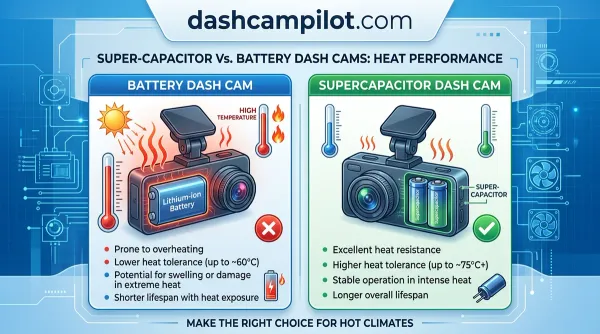
Wireless file transfers generate brief electrical current spikes within the camera circuitry. Built-in supercapacitors maintain clean electrical current, smoothing out voltage fluctuations to protect file integrity while the internal Wi-Fi transmitter operates at maximum power.
This localized power reserve is essential during abrupt shutdowns. For instance, if a 12V cigarette socket loses power instantly when the engine turns off, an active Wi-Fi download risks severe corruption. The supercapacitor provides emergency backup power to finalize video saves and close the transmission safely.
How Wi-Fi Dash Cameras Work with Local MicroSD Storage
Continuous Loop Recording and G-Sensor Locking
Wi-Fi dash cameras write incoming video streams directly to an onboard MicroSD card rather than broadcasting footage over the air. The internal processor slices recordings into standardized segments—typically set to 1, 3, or 5 minutes. When flash storage reaches maximum capacity, the continuous loop recording algorithm automatically overwrites the oldest unlocked files to ensure uninterrupted operation.
An integrated G-sensor constantly monitors multi-axis vehicle dynamics. When it registers sudden impact or severe braking—such as a 2.5G deceleration spike—it locks the current file. For example, a 3-minute 4K clip is immediately saved as an emergency event file and isolated into a dedicated, write-protected directory. The companion mobile app identifies this partitioned folder, flagging the footage for quick wireless retrieval.
Why Video Saves to Flash Memory Before Wireless Transmission
A widespread misconception is that Wi-Fi dash cams stream or upload their primary footage directly to a smartphone or cloud server in real time. Assuming the Wi-Fi must remain constantly connected to the phone for the camera to record is false; video is continuously recorded and written to an internal MicroSD card first, completely independent of any external network.
Physical NAND flash memory provides the guaranteed write bandwidth necessary to handle high-bitrate video streams without frame drops, packet loss, or wireless interference. Because recording is autonomous, the dash cam captures driving events reliably even if your smartphone is turned off, disconnected, out of battery, or left at home.
Under this architecture, the Wi-Fi hardware functions strictly as an on-demand retrieval bridge. The camera creates a local peer-to-peer network only when you choose to connect your phone, allowing you to review saved recordings, change system settings, or transfer locked incident clips directly to your handset's photo gallery without pulling the card.
Easy-to-Follow Steps for Connecting Your Phone to Dash Cam Wi-Fi
The camera's Wi-Fi network is strictly a short-range bridge between the camera and a smartphone companion app. It functions exclusively within a radius of roughly 10 to 30 feet, allowing direct communication without using a home router or cellular towers.
Initial Wi-Fi Pairing Procedure
Establishing a connection takes under two minutes once the hardware is mounted. Follow this straightforward setup sequence from inside your vehicle to link your mobile device:
Turn on vehicle accessory power (ACC) or start the engine to energize the dash cam and activate its internal Wi-Fi broadcast signal automatically.
Open your phone's wireless network settings and select the camera's unique SSID (network name), such as "VIOFO_A129_XXXX" or "BlackVue_XXXX", from the visible network list.
Enter the default factory passphrase (often printed in the manual or on the unit housing), which commonly defaults to a sequence like "12345678".
Navigating the Smartphone Companion App
Launch the proprietary smartphone companion app once the Wi-Fi handshake completes. The app automatically detects the linked hardware, shifting system controls from the camera's physical buttons directly to your mobile screen.
First, use the real-time video stream to inspect the live view angle. This allows you to position the lens accurately, keeping the vehicle hood line low and the horizon level across the frame.
Next, access the onboard settings menu to modify recording resolutions, configure timestamp watermarks, or adjust G-sensor collision triggers. Any configuration changes apply instantly to the camera firmware over the Wi-Fi link.
Finally, open the file directory to review recorded drives. You can download incident files directly to your phone's local storage for rapid review, insurance claims, or police reporting without touching the physical hardware.
2.4 GHz vs. 5 GHz Bands: How Fast Wi-Fi Dash Cams Work
A wireless dash camera creates a direct local connection to your smartphone using either a single-band 2.4 GHz Wi-Fi frequency band or dual-band (2.4 GHz / 5 GHz) hardware. The physical frequency you connect to dictates both file export speeds and live preview stability.
Bandwidth and Transfer Speed Differences
Single-band 2.4 GHz Wi-Fi offers longer physical range through glass and metal vehicle panels, but it features limited transfer bandwidth. This lower bandwidth creates a data bottleneck when moving high-bitrate media files from the camera's local memory to your phone.
In contrast, dual-band 5 GHz Wi-Fi delivers substantially faster throughput, reducing transfer times for large high-resolution video files. The wider channel widths minimize buffering when viewing live feeds or queuing multiple video downloads directly inside your vehicle cabin.
Environmental interference can still throttle these transfer rates. Electromagnetic interference from cabin radar detectors or heated windshield elements embedded with metallic filaments can degrade wireless data rates, occasionally causing temporary drops in signal quality regardless of the band selected.
Download Times for 1080p vs. 4K Video Files
Modern dash camera video recording resolution spans from 1080p to 4K (2160p) pixels. Higher resolutions drastically inflate file weight; a typical 1-minute 4K video file can exceed 200 MB, taking minutes over 2.4 GHz but only seconds over 5 GHz.
Real-world file download speed generally ranges between 2 to 15 MB/s depending on the active frequency. For example, transferring a 500 MB 4K clip at 2.5 MB/s takes over 3 minutes on 2.4 GHz, whereas moving that clip at 12 MB/s takes under 45 seconds on 5 GHz.
How to Read This Chart
This chart displays realistic transfer benchmarks across standard dash cam wireless frequencies. Speeds are measured in megabytes per second (MB/s), reflecting actual write speeds to your smartphone rather than theoretical link speeds. File export estimates represent continuous one-minute video segments at standard bitrates for 1080p and 4K (2160p) resolutions. Consult your dash cam's product manual to verify if it features a 2.4 GHz or dual-band configuration. Transfer durations will vary depending on mobile processor speed, cabin interference, and app encoding settings.
Why Dash Cam Wi-Fi Drops Cellular Data and Wireless CarPlay
Many drivers encounter unexpected connectivity issues right after pairing their phone to their camera. Failing to understand why mobile data stops working on the phone while connected to the camera's local, non-internet Wi-Fi network often leads to confusion during setup.
The Wireless Apple CarPlay and Android Auto Conflict
Smartphones typically support only one active Wi-Fi interface at a time. Because smartphones can generally connect to only one Wi-Fi network at a time, connecting to the dash cam usually drops wireless CarPlay or wireless Android Auto. Both systems rely on that same internal wireless antenna to stream display data to your dashboard.
When you force your phone to join the camera's private network, the operating system must sever the vehicle's media link. Because of this single-chip hardware limitation, running wireless infotainment projection and streaming live footage from the dash cam simultaneously is technically impossible on modern mobile devices.
Resolving the 'No Internet Connection' Smartphone Warning
Operating systems detect no internet on the camera network and may block cellular data routing unless explicitly overridden. When paired, mobile operating systems assume the connected Wi-Fi link should carry all web traffic, which inadvertently cuts off internet access for navigation, email, and music streaming.
You can see this directly with iOS prompting 'This network has no internet access. Use Cellular Data?' when syncing with the dash cam. Selecting the option to keep cellular active allows your handset to route background internet traffic over mobile bands while maintaining the local video stream.
To avoid recurring connection conflicts, the best practice is to keep the dash cam Wi-Fi disconnected during normal driving, enabling it only when reviewing or extracting clips. The camera continuously records incidents to internal storage without requiring an active smartphone handshake.
Wi-Fi vs. LTE Cellular Dash Cams: Which Method Fits Your Needs?
Comparing Local Wi-Fi to Remote LTE Cloud Cameras
Traditional non-Wi-Fi dash cams force users to carry a MicroSD adapter or laptop to extract incident footage at the roadside. Local Wi-Fi dash cams eliminate card pulling without recurring subscription costs or SIM card requirements, establishing a direct, short-range wireless bridge to your smartphone.
However, standard Wi-Fi dash cams cannot be monitored remotely from miles away unless the camera supports cloud mode and is connected to a separate mobile hotspot or home network. Their operational range remains limited to roughly 10 to 30 feet around the vehicle.
Cellular/LTE cloud dash cams provide true remote parking surveillance from miles away, but require ongoing monthly data plans. For instance, a driver might weigh a $130 Wi-Fi camera with zero monthly fees against a $350 LTE dash cam requiring a $10/month SIM card to receive instant push alerts anywhere.
Key Differences Across Dash Cam Architectures
Some drivers attempt to repurpose an action camera as a windshield recorder. While an action camera features Wi-Fi connectivity for wireless clip offloading, it lacks automotive-specific features like automatic ignition-triggered loop recording and high-heat supercapacitors built to endure cabin heat.
Dedicated dash cams use supercapacitors instead of volatile lithium batteries. Selecting the right setup requires balancing operational range, hardware expense, and cellular data overhead across different hardware designs.
How to Read Architecture and Specification Metrics
The comparative table contrasts operational limits across recording hardware. The effective range specifies the physical boundary within which a driver can access recorded media or query live camera parameters without removing the physical storage medium.
Monthly recurring costs reflect active cellular subscriber identity module (SIM) contracts required for carrier data transit; standard Wi-Fi and non-connected devices carry zero service maintenance charges. High-heat thermal resilience indicates whether an internal power system uses chemical lithium batteries or heat-resistant supercapacitors designed for direct windshield sun exposure.
Real-world values vary depending on the chosen carrier network, regional cellular coverage, local ambient vehicle temperatures, and specific camera firmware limitations. Verify exact configuration and subscription tiers before deployment.
- ✓ Local Access Point: The camera creates a closed ad-hoc wireless network to communicate with your phone without needing internet or cellular data.
- ✓ Dual Processing Stream: Hardware simultaneously records full-resolution video to a MicroSD card while downscaling a live feed for smooth Wi-Fi transmission.
- ✓ Frequency Band Variations: Modern dash cams operate on 2.4 GHz for range or 5 GHz for significantly faster transfer speeds during file downloads.
- ✓ Antenna Competition: Connecting your smartphone to the camera's Wi-Fi network temporarily disables wireless CarPlay, Android Auto, and mobile data access.
- ✓ Wi-Fi vs. LTE Distinction: Wi-Fi provides free local file access within a 15-foot radius, whereas cellular models require monthly plans for remote monitoring.
❓ Frequently Asked Questions
1 Do Wi-Fi dash cams require an active internet connection?
No, Wi-Fi dash cams do not require internet access. The camera acts as a local standalone access point, broadcasting an offline wireless signal. Your smartphone connects directly to this network to stream live feeds, manage settings, and extract recorded video files without consuming mobile data.
2 How does the video transfer process work between the camera and a phone?
The dash cam continuously records and stores footage onto an internal MicroSD card. When you open the companion mobile app, the camera's internal chipset establishes a direct Wi-Fi transmission tunnel, copying the selected video file directly from the memory card to your smartphone storage within minutes.
3 Why does my phone say 'No Internet Connection' when connected to the dash cam?
This notification is normal because the dash cam functions solely as a localized intranet device rather than a web modem. Your phone recognizes that the Wi-Fi signal lacks external web routing, so you must select 'Stay Connected' in your smartphone settings to complete the pairing process.
4 What is the main difference between Wi-Fi and LTE cellular dash cams?
A Wi-Fi dash cam provides a free, localized connection that works only within approximately 10 to 30 feet of your vehicle. In contrast, an LTE cellular dash cam requires an active SIM card and monthly subscription, allowing remote real-time cloud viewing and theft notifications from any distance.
5 What steps should I take if my dash cam Wi-Fi will not connect?
Begin by disabling wireless CarPlay or Android Auto, as they lock the phone's Wi-Fi antenna. Next, turn off cellular data, power-cycle the dash cam, and open your phone's Wi-Fi menu to manually select the camera's SSID. Enter the default password provided in the manual to re-establish the connection.
6 Does a Wi-Fi dash cam give my car internet access?
No. The Wi-Fi module operates strictly as a local wireless bridge between the dash cam and your smartphone. It does not contain a cellular modem or provide internet connectivity to vehicle passengers.